

Short-Circuited by Folders Again? Let’s Rewire This.
Have you ever opened a library to find one file and ended up on a scavenger hunt through six folders, three subfolders, and a mysterious “Final-Final-UseThisOne” situation… only to still not be confident you grabbed the right thing?
That’s not a “people problem.” That’s a “the house has no wiring plan” problem.
Plan Your Wiring...Before You Move In
When you plan the wiring in a house, you’re not doing it because you love crawling around in drywall. You’re doing it because you want the lights to turn on when you flip the switch. Metadata works the same way. It’s the behind-the-walls setup that makes SharePoint feel effortless later: search works, filters make sense, and views feel like someone actually designed them.
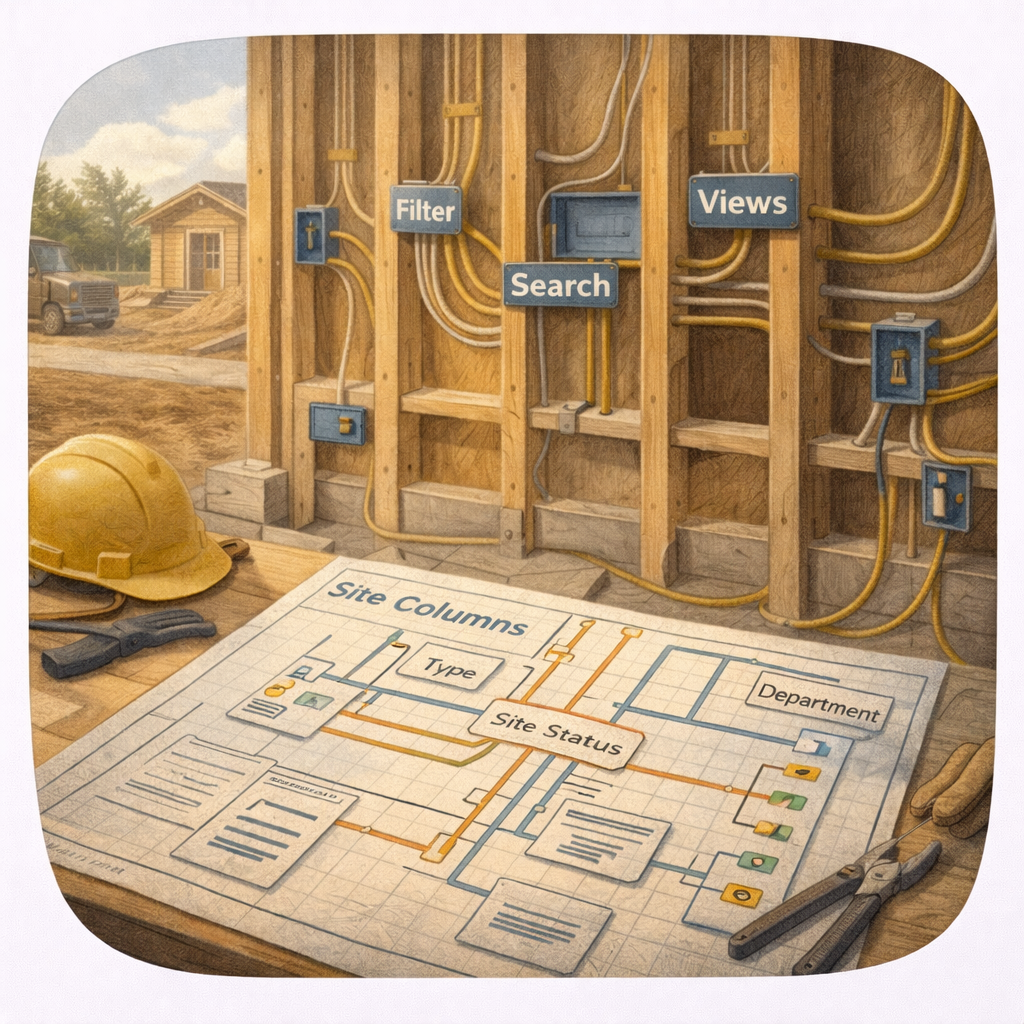
Think of columns and metadata as your wiring plan, powering:
Search (so people stop asking where things are)
Filtering (so libraries don’t become “scroll until you give up”)
Views (so each team can see what they need without rearranging the whole house)
If you want SharePoint to feel “smart,” this is where that starts.
Standard vs Custom Columns
Not every room needs a chandelier, and not every library needs a custom column. The trick is knowing what’s already built-in, and when you actually need something new.
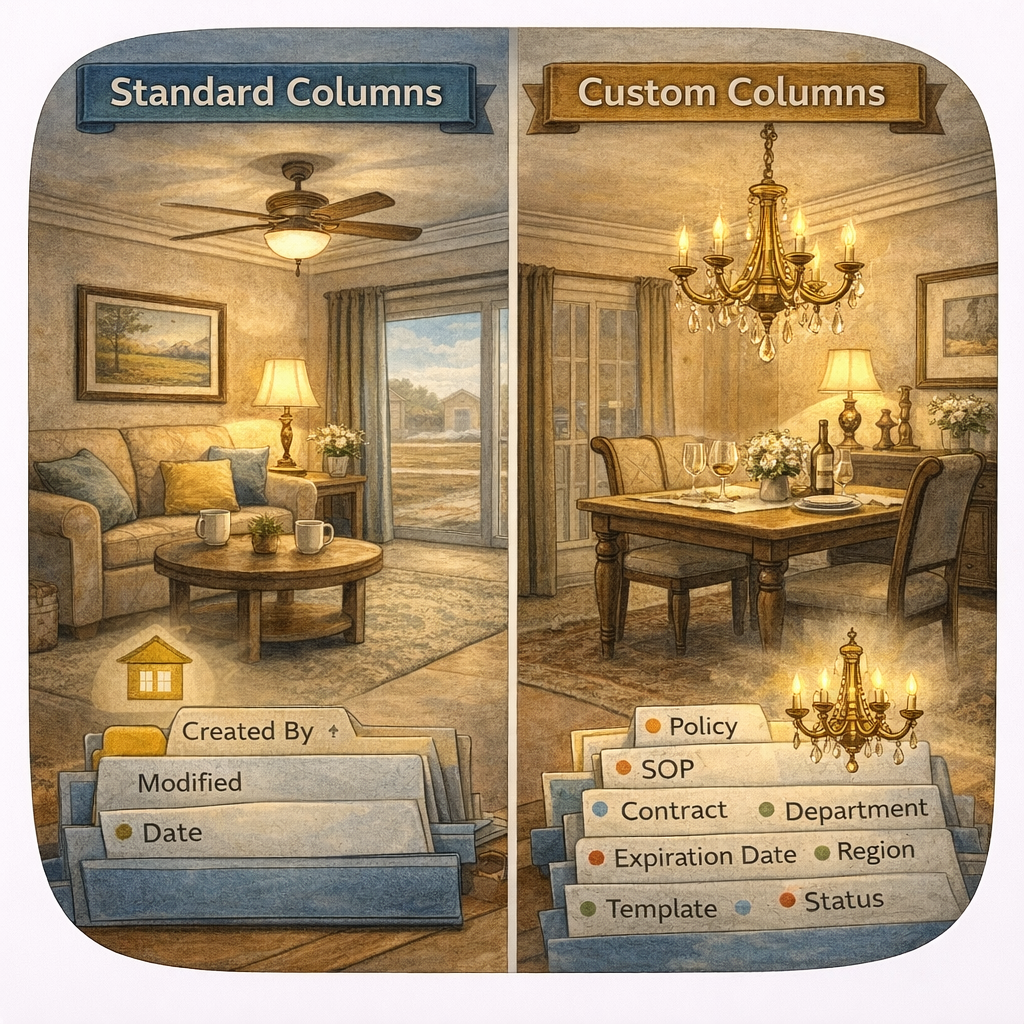
Start with standard columns when the basics will do the job:
Created, Modified, Created By, Modified By
Document type basics like Name, Title (when you truly use it), and dates
Create custom columns when the business needs more context than a file name can carry:
Document Type (Policy, SOP, Contract, Template)
Client, Region, Department, Project
Status (Draft, In Review, Approved, Archived)
Effective Date, Expiration Date, Renewal Date
A good rule: if someone routinely asks a question about a file that isn’t answered by the file name, that question is probably a column.
Site Columns Are Your Fuse Box
In a house, the fuse box keeps wiring consistent and controlled. In SharePoint, Site Columns do the same thing. They’re reusable, predictable, and they help you avoid the “we made the same column five different ways” mess that quietly breaks reporting, search, and consistency.
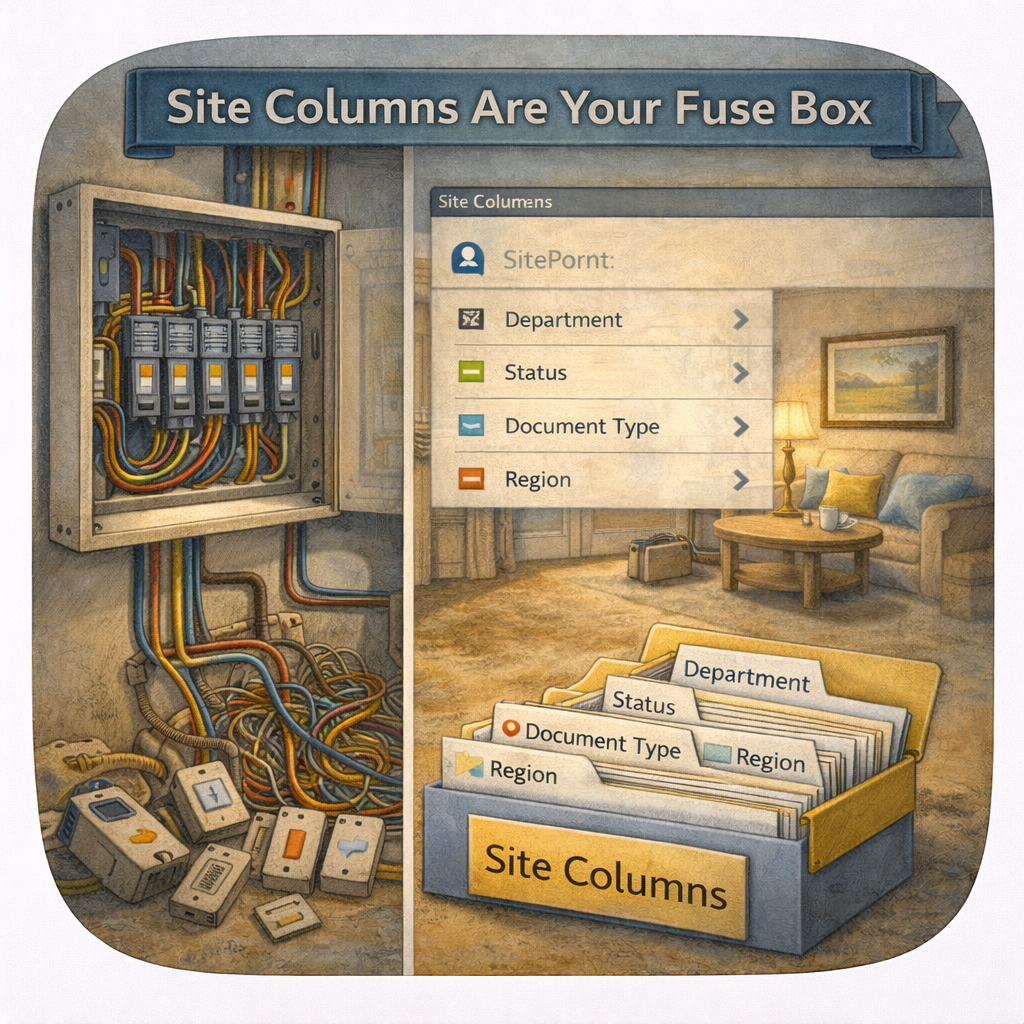
Use Site Columns when:
You want the same column used across multiple libraries or lists
You care about consistent naming and values
You want to standardize views and filtering across a site
If you build columns directly in a single library every time, it’s like wiring each room with a different set of switches and hoping nobody notices.
They notice.
Managed Metadata Is the Master Wiring
Now we get to the “bring in the electrician” moment.
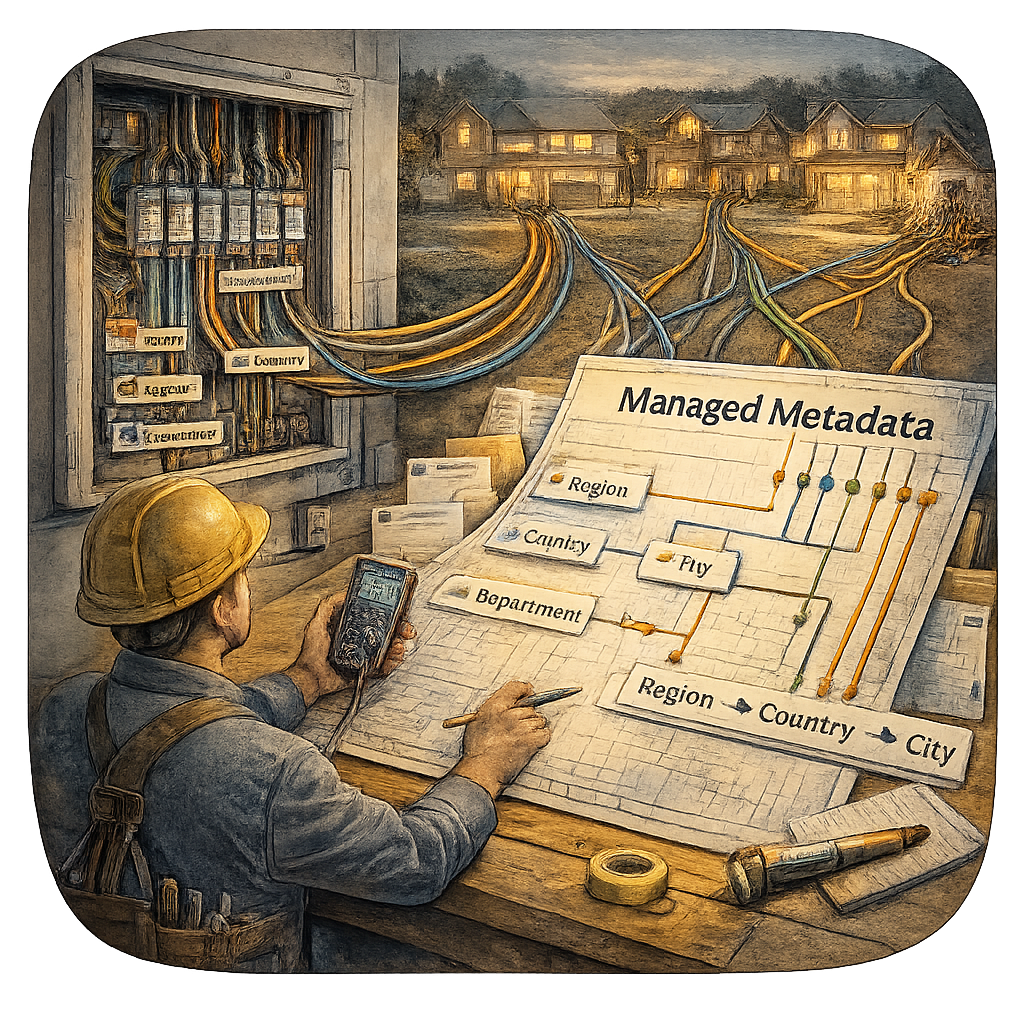
Managed Metadata is your master wiring. It’s centralized, governed, and designed to scale across sites, departments, and systems. This is usually where a developer, admin, or governance team steps in, because it touches enterprise-wide structure and consistency.
Managed Metadata is best for:
Organizational terminology that needs consistency (departments, regions, service lines)
Tags used across multiple sites
Scenarios where you want hierarchy (Region > Country > City, for example)
Situations where reporting and compliance matter
If Site Columns are your fuse box, Managed Metadata is the wiring plan your electrician documents so the whole neighborhood doesn’t flicker every time someone plugs in a toaster.
Convert Folder Habits Into Smarter Structure
Folders feel comforting because they look like organization. But they usually create three problems:
People file things differently
Search results lose context
The “right” version gets buried
Instead of asking, “What folder should this go in?” ask, “What should this file be known as?”
Try translating folder names into metadata, like this:
Folder: 2025 Contracts → Columns: Year = 2025, Doc Type = Contract
Folder: Draft / Pending / Approved → Column: Status (Choice)
Folder: Global Logistics / Tech Solutions → Column: Department (Managed Metadata or Choice)
This is how you keep the library clean while still letting people view content in the way that makes sense for their role.
Ask Yourself
If someone new joined your team tomorrow, would they be able to find the right document in under a minute… or would they need a tour guide and a flashlight?
Metadata matters because it reduces daily friction. It’s how you stop SharePoint from becoming a place where information goes to “live somewhere” and starts becoming a place where information is actually usable.
How Can I Help?
As a SharePoint Architect, Consultant, and Adoption Specialist, I help teams plan metadata that supports real work: the columns that matter, the values that stay consistent, and the views that make users feel like the site was designed for them (because it was). If you want help translating folder habits into a metadata model that improves findability without overwhelming your team, let’s talk.
Not sure? Let's Chat!
What’s the most common folder name in your libraries right now, and what column would replace it? Drop it in the comments!
#SharePoint #Metadata #InformationArchitecture #ContentManagement #Microsoft365 #Search #Governance #emPOWERd #GirlGeeks #MVPBuzz #M365 #Microsoft #Productivity


